
The Hub blog
Discovering Figma
Figma, the tool you need to know
Founded in 2013, Figma has become an essential tool for marketers in just a few years. Figma had raised $3.8 million in seed funding.
Today, Figma is valued at more than $10 billion (end of May 2021).
Incredible growth, isn’t it?
Today, the Dgitags team brings you a review of Figma to help you discover its main features.
We hope you enjoy the article. If you’re interested, it’s just below!

Introducing the tool
Figma is a vector graphics editor and prototyping tool that is primarily web-based, with additional offline features enabled by desktop applications for macOS and Windows.
Figma’s feature set focuses on use in user interface and user experience design, with an emphasis on real-time collaboration. (Wikipedia)
The features
1/ Design
o Easy-to-use design tools
Þ A modern pen tool: you can draw in any direction with vector networks.
Þ Instant arc drawing: you can easily design clocks, watch faces or pie charts with the Arc tool.
Þ Be expressive with OpenType: you’ll have access to advanced font features to fully express your creativity in line with your brand.
o Automatic layout (Auto Layout)
Þ You can resize buttons along with their text and reorder lists when items are moved. You’ll have less manual resizing to do.
Þ You can stretch Auto Layout components left and right (or up and down) to make responsive design easier.
Þ Auto Layout’s padding, direction and spacing settings translate directly into code, which makes developers’ work simpler.
o Work more efficiently thanks to plugins
You can eliminate repetitive tasks, import data and optimise custom workflows.
Þ Plugins for different uses: images stored on your computer, flow diagrams, accessibility and colour choices, charts, icons, etc.
Þ No need for developers: you can create a plugin yourself without help from a programmer
Þ Private plugins: companies that use Figma can create and distribute private plugins within their organisation.
2/ Prototyping
o Create prototypes that look like the real experience
You can turn your static design files into an interactive experience. You don’t need to know how to code.
Þ Creating interactions: you can connect user interface (UI) elements to each other and choose your interactions and animations — for example, on a click or a button press.
Þ Different frames: you can choose an interface suited to a mobile device, a computer or even a tablet, so you’re immersed in a real experience.
o Interactions with no programming required
Þ Create advanced transitions with Smart Animate: you can automatically animate similar objects and create detailed transitions.
Þ Creating dynamic overlays: you can create several layers of interactive content overlays.
Þ Using animated GIFs: GIFs let you represent motion designs, video elements and subtle animations.
3/ Design system features
Þ A search tool: this feature lets you find the assets you’re looking for. Drag and drop them into your file.
Þ You can create styles that everyone can use and apply to any object.
Þ Publish libraries containing all your shareable assets (icons, backgrounds, images, avatars, fonts, etc.)
Did the features interest you? If so, stay with us. We’ll now move on to installing and using Figma.
Installation
1/ Launch Figma on your computer
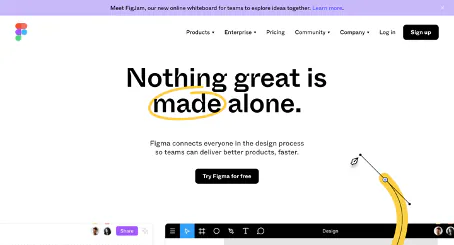
Or download Figma onto your computer
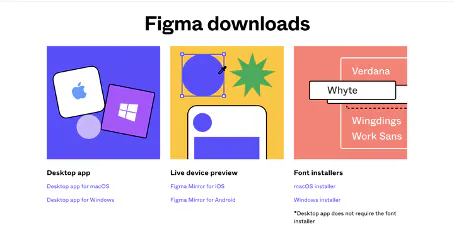
2/ Sign up or log in
If you need to sign up, the screen will look like this:
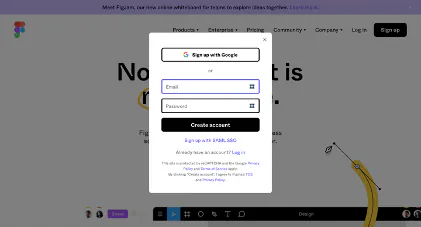
You can sign up in two ways:
- By entering your email address
- By using your Google account
If you need to log in, the screen will look like this:
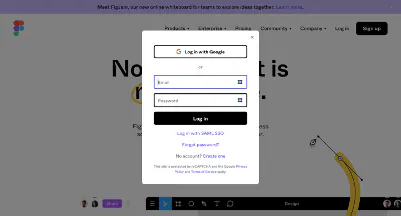
Let’s get started!
Using Figma
Once you’re logged in or signed up, you can start using Figma. The following page will appear:
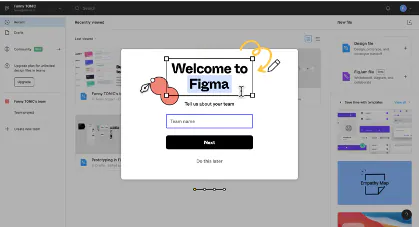
Choose a name for your project team.
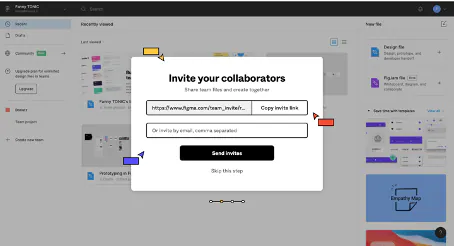
Invite your collaborators by sharing a link or sending them an email.
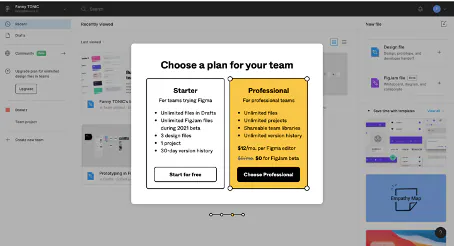
Choose the version you want. In this review, we’ll use the free version.
Once you’ve completed these steps, you’ll land on the following page:
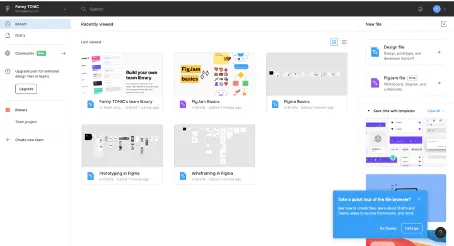
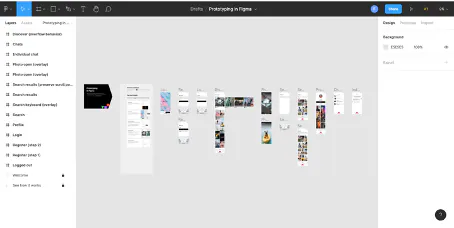
Some of the folders already there are designed to help you use Figma. You have access to example prototypes. Say I click on “Prototyping in Figma”.
The page below will appear with an example prototype. You can perfectly well use an existing template by copying it into another folder to save time, or simply take inspiration from it.
On the right, you can create two different types of “files”:
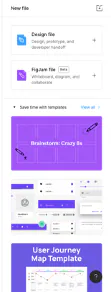
- Design file: a file for designing, prototyping and developing a project
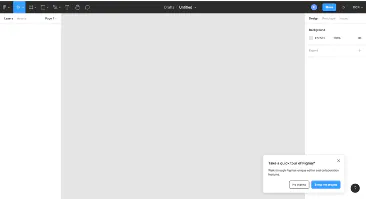
Before you start, you can click on “show me around” at the bottom to get an explanation of some of the design tools.
- FigJam file: a file for collaborating on a whiteboard
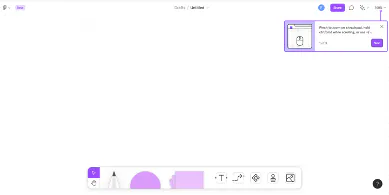
So you have two main tools in Figma: the Design File and the FigJam File. Let’s start with the Design File.
Part one: Design File
If you want to create your own prototype from scratch, this part should interest you.
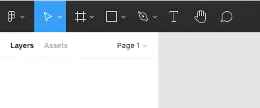
At the top left, in the black sidebar, you have all the tools.
In Layers and Assets, you’ll find the different layers.
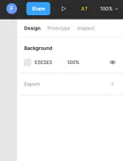
At the top right, you have the settings for the layers, or for the workspace if no layer is selected.
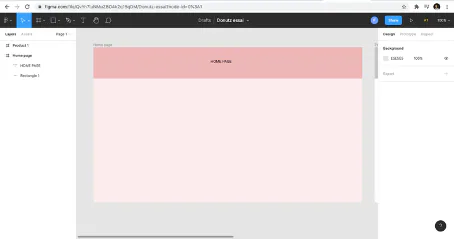
You can work directly on the interface you see, or create a frame — in other words, a screen.
To create this frame, you can use the frame tool at the top left.
In the example below, I created two frames:
- Homepage
- Product 1
Then I inserted a rectangle to turn it into a banner. I also inserted some text.
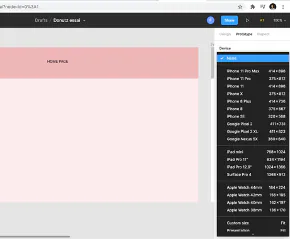
In Prototype, then Device, I can choose which type of device I want to create this project for.
Figma lets you create reusable components (icons, backgrounds, avatars, fonts…) that can be shared between different users or different projects. These components are referenced only once in the design system, so any change to one of them is reflected in every project where it’s used.
Video clip 1: A quick tour of the tools
Video clip 2: More detail on using the tools
Video clip 3: Creating links between your objects/pages
Video clip 4: Preview
For more tips and analysis of the tools, you can check out this video on YouTube, which we found interesting.
Did you enjoy this first part? Stay with us! It’s not over yet.
Part two: FigJam File
Would you like to see a quick video introduction to FigJam? It’s here.
FigJam offers an online whiteboard to allow teams to collaborate.
There are several possible uses for this board:
- Brainstorming with your teams
- Drawing flows and diagrams
- Adding sticky notes
- Building a user flow
- Etc.
The goal is to allow everyone to take part and share their ideas.
FigJam recently launched a built-in audio feature that lets teams talk live without having to start a video call.
FigJam is free for the time being. A paid plan is expected to launch in 2022. FigJam now competes with tools such as Miro, Mural or Freehand.
Video clip on FigJam:
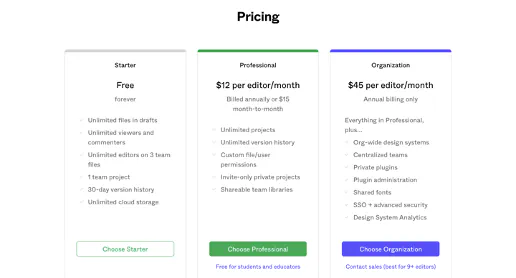
We hope this detailed introduction to Figma’s two main tools has interested you. Let’s now move on to Figma’s pricing.
Pricing
Our final verdict
Figma is therefore a very comprehensive design tool. All the features of its competitors (Sketch and Adobe XD) can be found in a simplified, intuitive interface.
Figma has many advantages and also some drawbacks, but it can nonetheless be considered a superb UX/UI design tool for teamwork.
Figma’s strengths
- The ability for several people to collaborate on a project
- Building a prototype from A to Z without any programming
- Handy for developing a design system (a large library of graphic components)
- Lots of plugins
Figma’s weaknesses
- The free version is enough for 2-3 people, but beyond that it isn’t possible
- Requires a good internet connection
It’s a 4.5/5 for Figma!
And that’s the end of this review. Yes, already… Don’t worry, we’ll be back soon with even more content!
The Dgitags team nevertheless hopes this article has interested you and taught you a few things about Figma, an essential tool.
See you soon!
Source: Figma website