
The Hub blog
Figma vs Sketch: which is the best tool for designers?
Let’s explore these 2 tools
For some time now, Sketch has been designers’ tool of choice. However, with Figma’s arrival on the market, its number 1 spot has been called into question. What makes it special? Figma is the first interface design tool based in an online browser.
Dylan Field, one of Figma’s co-founders, wanted “to do for interface design what Google Docs did for text editing”.
Its aim is to revolutionise the way design teams collaborate. And that’s exactly what’s happening, as Figma is increasingly used by designers.
In this article, we’ll try to answer the following questions: How does Figma compare with Sketch today? Is Figma dethroning Sketch?
So today the Dgitags team will try to answer these questions. If you’d like to know more about these two competitors, read on.
So, let’s go!
1/ Figma vs Sketch: Introduction
To begin with, one of the main differences between the two tools is that Sketch is a desktop application available only on Apple computers, whereas Figma runs in a browser. So unlike Sketch, it’s accessible to everyone. You just need to create an account and have a computer.
You can also download Figma directly onto your computer (Mac or Windows) so that it appears on your desktop. However, it’s important to note that if you’re not connected to the internet, you won’t be able to open a new file. For designers who need to work offline, this can be a problem.
But you do have to ask yourself the following question: is Figma as powerful and high-performing as Sketch, given that it’s web-based?
In our experience, it seems so.
2/ Figma vs Sketch: pricing
Sketch pricing:
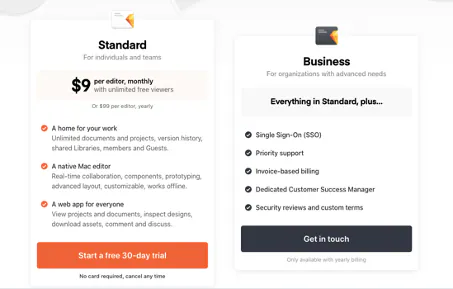
You have to pay $99 for a licence that lasts one year. Throughout that year, you’ll receive all updates to the Sketch application.
Once the licence has expired, you can keep using Sketch for life, but you need a current licence to receive updates.
You also have the option of a Business subscription. You need to contact Sketch to find out more.
Figma pricing:
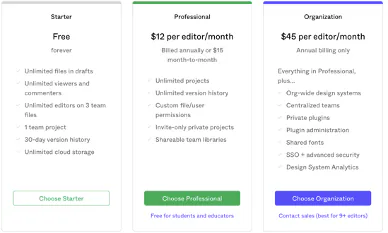
The tool is currently free for individuals. A professional team plan costs $12 per editor per month if billed annually, or $15 per editor per month if billed monthly.
You can also take out an Organisation subscription, which costs $45 per editor per month.
The advantage of these two tools is that they both offer a free trial. This lets you see which tool you prefer before making a financial commitment!
3/ Figma vs Sketch: the interfaces
From an ergonomic point of view, the two interfaces are fairly similar. Figma took quite a lot of inspiration from Sketch. You won’t feel out of place switching from one to the other.
When you open the Figma application, you go straight to the “recently viewed” section of the file browser. There you’ll find your current projects or fully editable preloaded folders, whose elements you can copy into any new templates you create. It depends on whether you want to create your project from scratch or draw inspiration from a template.
In terms of interface, the only difference lies in the terminology used. In Sketch, you work with artboards, whereas in Figma you work with frames. Symbols in Sketch are called components in Figma. In reality, it’s just a question of wording, and if you’re familiar with Sketch, you’ll quickly find your way around Figma.
Symbols

Components

Frame vs Artboard
Frame:
Figma uses the term “Frame” to describe the top-level container of your design content. What makes frames more powerful than Sketch’s artboards is the ability to nest them. Each frame can have its own layout grid, its own sizing preferences and its own content clipping.
Artboard:
Sketch uses the term “Artboard” to describe the highest-level container of your design content.
Sketch and Figma both support pinning and resizing rules within the “Artboard” and work in essentially the same way, except that Sketch doesn’t support nested artboards.
Component vs Symbol
Component:
Unlike Sketch, Figma doesn’t move or duplicate your master component onto its own page. Your master component lives where it was created and can be moved to whichever page you choose. This can be a little tricky if you’re used to seeing all your symbols neatly displayed on one page. But don’t panic: you can access and edit them just as quickly as in Sketch by finding each master component in the Assets panel, similar to Sketch’s Components panel. The Assets panel shows all locally created components as well as components from any enabled library.
Symbol:
Sketch creates a page in your file called “Symbols” as soon as you designate your first symbol. This page can be very useful for keeping track of and updating your symbols. Editing your master component will apply that change to every instance that doesn’t have an existing override. You can also quickly locate symbols in the “Components” panel to search through them.
4/ Figma vs. Sketch: features
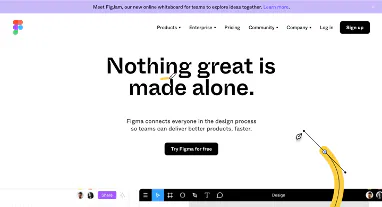
One of Figma’s best features is teamwork. Figma is a very good option if you want to work remotely with your team.
For example, there’s a real-time collaboration feature. Several team members can work on the same design project simultaneously. Each participant can see changes directly in the tool, as they happen.
In Sketch, collaborating on a file with other designers can be complicated. For example, changes you make to text styles will affect every component that contains text. So you need to stay in constant communication with the other members of your team so as not to overwrite a teammate’s work.
Another interesting advantage is that Figma is web-based, so a developer who wants to view a particular project, for example, doesn’t need to install a design tool they won’t otherwise use. Each project has its own URL, which makes sharing files easy.
In terms of design tools, Figma also has some tools that could be considered better than Sketch’s. Grids and constraints allow total flexibility when it comes to creating resizable, responsive layouts. You can also do this in Sketch with the group resizing feature, but you’re limited to just four options.
Figma has also taken Sketch’s traditional drawing tool and improved it by using vector networks instead of paths. As Figma co-founder Evan Wallace explains: “A vector network improves on the path model by allowing lines and curves between any two points instead of requiring that they all join up to form a single chain.” In practice, this allows greater flexibility when drawing.
However, when it comes to the variety of plugins, Sketch takes back the lead. In fact, there’s practically nothing you can’t do in Sketch if you have the right plugin. While it’s true that Figma comes with native prototyping and developer handoff capabilities, there are many plugins that integrate Sketch with the most popular tools in the industry, such as Zeplin for developer handoff. For many designers, having to install a plugin isn’t a real problem, which gives them little incentive to switch from Sketch to Figma.
As for prototyping, neither Figma nor Sketch had prototyping features when they first launched, but as the market becomes more and more competitive, applications also need constant updates so as not to fall behind. Figma introduced a prototyping feature in 2017, and Sketch did the same in 2018.
On this front, Figma can be more flexible than Sketch, because it supports overlays when linking objects to other artboards. Figma stands out for its intuitive construction, since designers can easily connect user interface elements and choose the respective interactions and animations. What’s more, Figma is optimised for mobile phones, which is a big advantage for device frames and dynamic scrolling. This lets designers understand how the user will “experience” the prototypes. Prototypes are shared via a simple link, since Figma is cloud-based. In Sketch, the process is also fairly simple, but it requires designers to upload files to Sketch Cloud before sharing them.
If you’d like to find out more about Figma, it’s this way.
5/ Figma vs Sketch: which one should you choose?
Who’s the big winner?

There’s no immediate answer to this question.
In terms of collaboration, Figma is probably the big winner. What’s more, the fact that it runs in a browser is a considerable advantage for anyone who doesn’t own a Mac, or who needs to access certain files but doesn’t want to download and install design tools. Figma’s primary aim was to meet a need in terms of teamwork. That bet has paid off completely. Its real-time collaboration and detailed version control features are certainly its strong points.
Recently, Sketch realised how valuable the collaboration feature is for designers. So in July 2020, the public beta of Sketch for Teams was launched. It gives users a better way to collaborate on the same files. You can add participants, who can each view or edit the file. Sketch for Teams also has a comments section where users can discuss.
One point that can make the difference between these two tools is that Sketch is ultimately cheaper than Figma. Figma can turn out to be an expensive option, especially for large teams.
In terms of native design features, the two tools are more or less on a par. We still think Sketch beats Figma on the variety of plugins available. That’s no surprise, since Sketch was created before Figma.
In the future, Figma may well catch up with Sketch on this point.
Conclusion
Figma and Sketch are therefore two design tools with incredible potential. They keep offering new features and improving existing ones, which makes it very difficult for designers to decide which one to use.
In the end, it all comes down to the designer’s preference.
Some favour plugins, others are more concerned with collaboration. What’s more, Figma’s vector networks may be faster for drawing, but also less rigorous and precise than Sketch’s vector tools.
So the real questions to ask yourself are the following:
- Does the designer work as a freelancer or within a company? Interested in freelancers? Come and take a look at our dedicated page.
- What computers do the designers use for work?
- How big is the team?
- What other tools will the designer use?
These are some of the most important questions to ask yourself in order to choose between these two pieces of software.
So the choice between the two tools depends on the balance between performance, functionality and features that each designer is looking for. Beyond individual preferences, you also need to take external factors into account, such as the number of team members, the availability of operating systems within the company, and collaboration capabilities.
And that’s the end of this article. Yes, already… Don’t worry, we’ll be back soon with even more content!
The Dgitags team nevertheless hopes you found this article interesting and that it taught you a few things about these two essential tools, Figma and Sketch.
See you very soon!
Appendix:
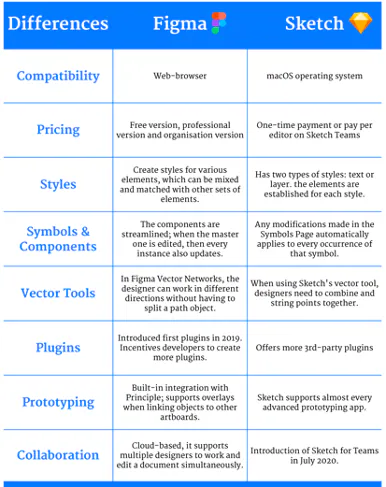
Image source: Imaginary Cloud
Sources: